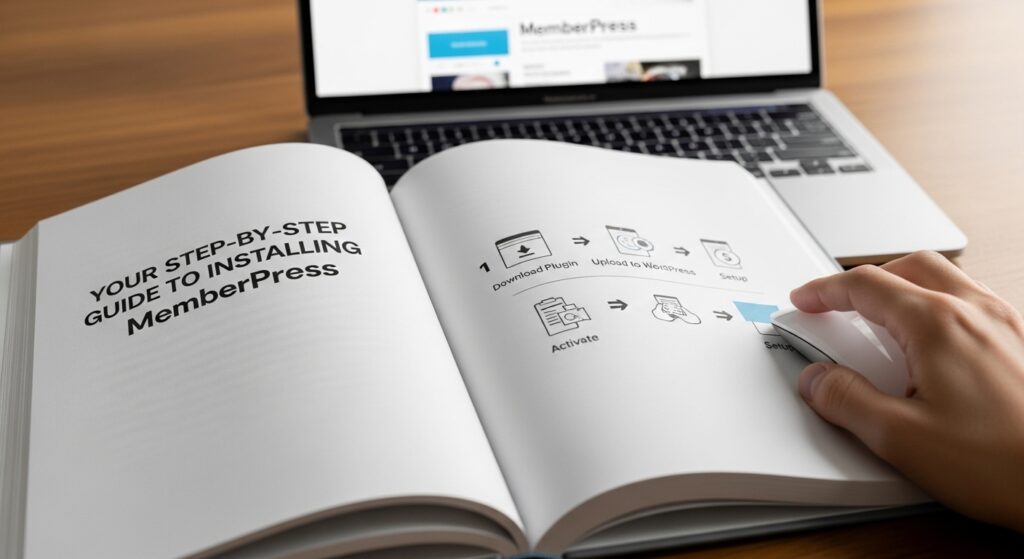

Introduction:
Ready to launch a membership site that powers your business? MemberPress is one of the most powerful WordPress membership plugins in 2025, designed to help you monetize content, manage subscriptions, and protect digital products with ease. But the first step is always getting MemberPress properly installed on your WordPress site. This guide walks you through the entire installation process clearly and efficiently, from purchase to activation, so you avoid any hiccups and start building faster.memberpress+1youtube
Preparing for Installation
Before diving in, make sure you have:
- A live WordPress site with access to the admin dashboard
- A MemberPress account and a purchased plan that suits your needs
- FTP credentials handy in case you need to manually upload files
MemberPress works seamlessly with most WordPress hosting providers, but a reliable, updated WordPress installation will guarantee smoother setup and performance.
How to Install MemberPress Automatically
Installing MemberPress automatically is often the fastest and easiest method. memberpress
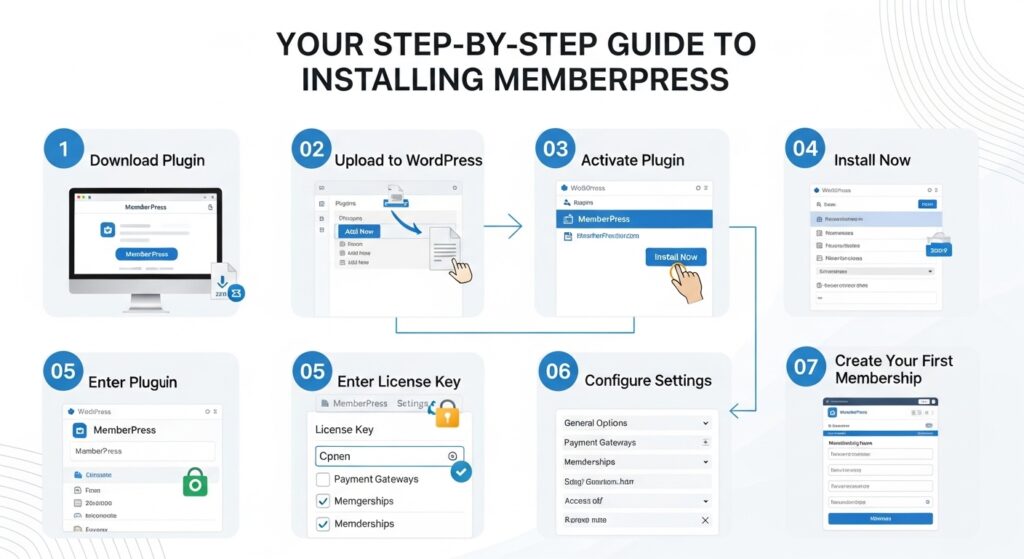
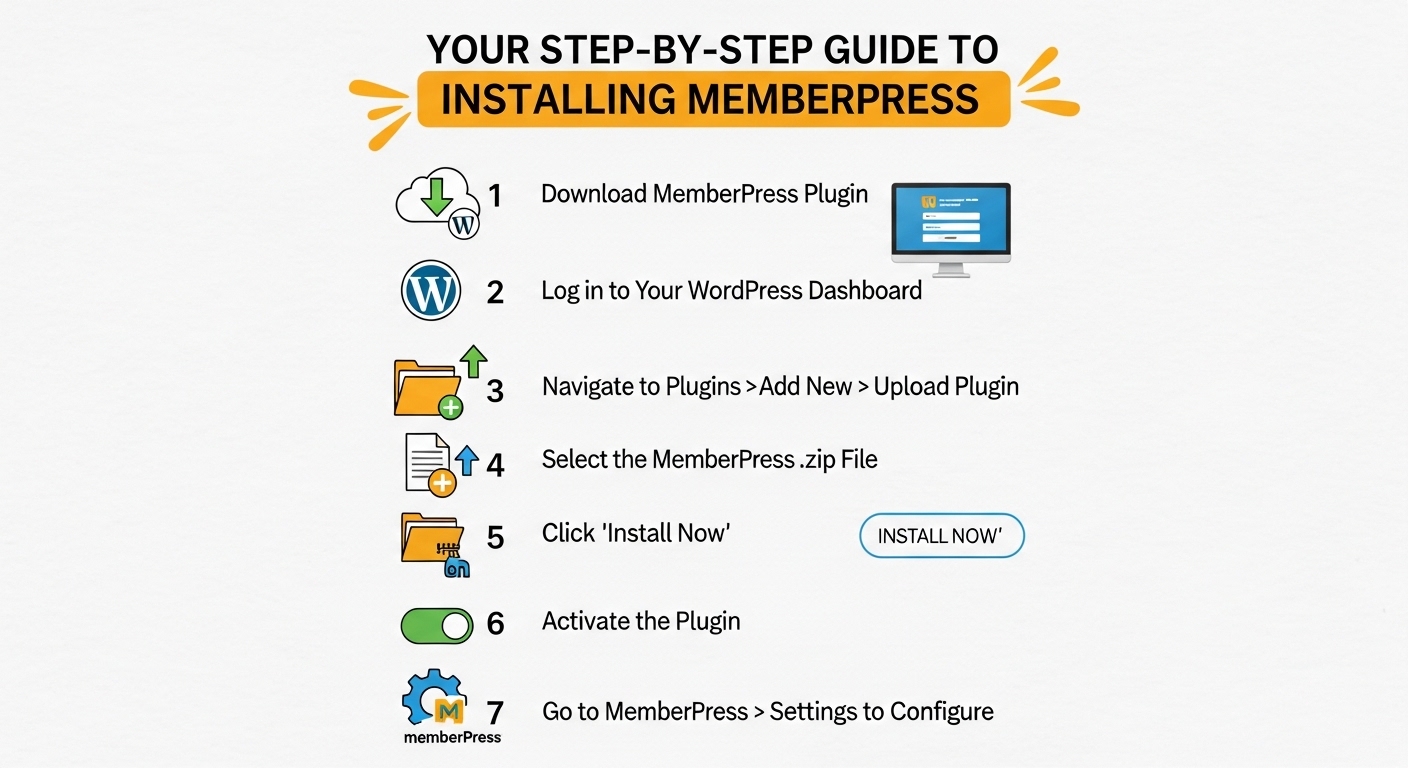
Step 1: Download the Plugin
- Log in to your MemberPress.com account, navigate to the downloads section, and download the MemberPress plugin as a ZIP file.
Step 2: Upload the Plugin
- Log in to your WordPress dashboard as an administrator.
- Go to Dashboard > Plugins > Add New.
- Click Upload Plugin, select the MemberPress ZIP file from your downloads, and click Install Now.
Step 3: Activate MemberPress
- After installation, click the Activate Plugin button.
- You’ll see the MemberPress menu added to the WordPress sidebar, confirming activation successful.
Manual Installation for Advanced Users
If automatic installation fails or your host restricts it, follow these manual steps:memberpress
Step 1: Extract Files
- Extract the
memberpress.zipfile on your computer.
Step 2: Upload via FTP
- Connect to your website’s server using an FTP client like FileZilla (contact your hosting provider if uncertain).
- Upload the extracted
memberpressdirectory to your WordPress site’s/wp-content/plugins/folder.
Step 3: Activate Plugin
- Log in to your WordPress admin panel.
- Navigate to Plugins > Installed Plugins, find MemberPress, then click Activate.
Initial Setup Wizard
After activation, MemberPress provides an easy-to-follow setup wizard that streamlines core configuration. linkedin
- The wizard automatically activates your license, creates essential pages like login and account pages, and applies basic settings.
- You can customize these options later, but the wizard saves you 30+ minutes and helps avoid common mistakes.
- Don’t skip this step—it is critical for a smooth start.
Key Configuration Steps After Installation
Once installed and activated, here are important things to configure immediately:
- License Activation: Enter your MemberPress license key in MemberPress > Options > License to receive updates and official support.memberpress
- Payment Gateways: Set up payment providers like Stripe, PayPal, or Authorize.net under MemberPress > Settings > Payments. Offering multiple options is best for flexibility. seedprod
- Membership Levels: Create membership tiers tailored for your business by navigating to MemberPress > Memberships > Add New and specifying pricing, billing cycles, and content access.seedprod
- Access Rules: Define what content is restricted and assign access rights per membership level from MemberPress > Rules .seedprod
- Welcome Emails & Thank You Pages: Customize your member communication and landing pages for better engagement.
Troubleshooting Common Installation Issues
- Ensure your WordPress version is up to date (recommended 6.0+).
- If the upload fails, increase the PHP upload limits or switch to manual FTP installation. memberpress
- Clear WordPress and browser cache after installation to avoid stale errors.
- Ensure your hosting plan supports necessary PHP extensions and MySQL versions (often handled by most hosts).
- Check for plugin conflicts by temporarily deactivating other plugins if errors persist.
Unique Insights and Best Practices
- MemberPress works best when combined with a well-chosen WordPress theme optimized for memberships. Astra and GeneratePress are popular choices. linkedin
- Leveraging the setup wizard ensures foundational elements are correctly configured, preventing common user errors in licensing and essential page creation.
- Manual FTP is useful for agencies or multi-site environments where direct file control is required.
- Planning your membership levels and payment gateways speeds up post-installation configuration.
- Activate only the add-ons you need to minimize overhead and maintain optimal site performance.
Summary Table: Installation Methods
| Installation Method | Best For | Pros | Cons |
|---|---|---|---|
| Automatic | Most users | Fast, easy license activation | Requires appropriate hosting |
| Manual (FTP) | Restricted hosting, advanced users | Full control over files | Slightly more complex |
| Setup Wizard | All users after activation | Streamlines license & pages | Skippable but not recommended |
Conclusion: Empowering Your Membership Site Launch
Installing MemberPress is the first crucial step toward building a thriving membership community or digital product platform. Whether you choose the automatic or manual method, MemberPress’s intuitive setup and rich feature set enable even beginners to get started quickly and efficiently.
Taking time to follow the installation steps carefully, utilize the setup wizard, and configure core settings will pave the way for seamless membership management and growth.
Meta Title: Your Step-by-Step Guide to Installing MemberPress for WordPress in 2025
Meta Description: Learn how to install MemberPress on your WordPress site with this clear, step-by-step guide. Get started quickly and build your membership site today.
Call to Action
Already installed MemberPress? Share your installation tips or challenges below! New to memberships? Subscribe for more detailed guides and exclusive tutorials to help you grow your WordPress business. Begin your journey with MemberPress today and unlock the full potential of membership marketing.
Explore in-depth guides and support at the official MemberPress docs: How to Install MemberPress